If a classroom projector is not showing your laptop screen, start with the room’s normal power and input controls, then check the accessible cable path. On a Windows laptop, press Windows + P and choose Duplicate when the same image should appear on both screens. On a Mac, open Apple menu → System Settings → Displays and see whether the projector is detected. Follow what you can actually observe: “No Signal,” a blank screen and a projected desktop without the lesson window point to different places in the setup.
This guide focuses on a wired classroom connection and safe checks a teacher can usually make. Projector menus, classroom AV routing and restart procedures vary by room. These instructions are based on Microsoft, Apple and manufacturer documentation checked September 25, 2026; we have not tested a physical school projector or AV system for this article.
In this guide
Classroom projector not showing laptop screen: identify the symptom
Look at both the projector and laptop. Is the projector powered on? Can you see its menu? Does it show “No Signal,” a blue/black screen or the laptop’s wallpaper? Does the image appear and then drop out? Write down the exact message and where it appears.
| What you see | First area to check | What it does not prove |
|---|---|---|
| Projector menu or “No Signal” | Selected room input, cable path and laptop output | It does not prove the projector is broken |
| No menu, image or status light | Normal room power/startup controls; then contact support | It does not justify opening the unit or reaching ceiling equipment |
| Wallpaper appears but the lesson window does not | Windows display mode or Mac mirroring arrangement | The cable path is not necessarily faulty |
| Picture appears and disappears | One accessible cable, adapter or dock at a time | A stable image after one change does not prove the fault is permanently fixed |
| Image works but looks stretched or unclear | Resolution and room-specific display guidance | This is different from no signal |
Before selecting Duplicate or mirroring, close private messages, student records and any window you do not want projected. Use a harmless slide or blank document as the test image. This is particularly important when the laptop is connected to a large classroom screen.
Check the room controls and selected input
Use the room’s posted instructions or normal control panel to turn on the display system. Allow its usual startup time. If the room has labeled choices such as HDMI 1, Laptop, Room PC or Document Camera, select the source that matches the cable you are using.
A cable being plugged into the lectern does not guarantee that the projector is listening to that port. Some rooms route connections through a switcher or wall panel; the physical HDMI connection at the laptop may be only one part of the path. If you can see the projector’s menu, note that fact. It tells support that the projector can display at least its own menu, while the laptop signal may not be reaching the selected input.
If the room has an ordinary Blank, AV Mute or screen control, check it using the posted guide. Do not climb to a ceiling-mounted projector, open a locked equipment cabinet or change a shared system’s configuration. If the controls do not respond, record what happens and contact the responsible support team.
Follow the accessible cable and adapter path
Trace the connection from the laptop to its adapter or dock, then to the room’s accessible wall or desk input. Check that plugs are fully inserted and that nothing looks damaged. Reseat an accessible connection gently if the room procedure permits it. Do not tug on the cable or force a plug into a port.
If an approved spare cable or adapter is available at the desk, test one item at a time. For example, keep the same laptop and room input while substituting only the cable. Observe whether the symptom changes. If you replace the laptop, dock, adapter and cable together, a working picture gives little evidence about which item mattered.
A USB-C connector fitting into a laptop does not guarantee it carries video. The laptop port, adapter, dock and cable must support the needed display connection. A charging-only cable may fit but not carry an image. Check the equipment documentation or ask school IT rather than buying or installing an adapter during class.
If the cable path runs behind a locked cabinet, through a ceiling or into installed AV equipment, stop at the accessible controls. Do not disconnect or reset equipment that serves the whole room. Report the labeled input, cable route as far as you can see it, and what the projector displays.
Choose the correct Windows display mode
When using a Windows laptop, press Windows + P to open the projection choices. Select Duplicate to show the same lesson image on the laptop and projector. The other modes have different purposes: PC screen only uses the laptop screen; Extend creates a second desktop; and Second screen only uses the projector or external display as the only screen.
If the projector shows your wallpaper but not the presentation, Windows may be extending the desktop. The connection is carrying an image; check the window placement or choose Duplicate if that fits the lesson. Teachers who use presenter notes may want Extend, but should confirm that the projector displays the audience slide rather than private notes.
If the laptop does not detect the display, open Settings → System → Display. When Windows detects multiple displays, Microsoft’s guide describes using the Detect option under the multiple displays controls. Menu names can vary by Windows build and organization policy. If a setting is managed or unavailable, report that rather than trying to bypass it.
After making one allowed change, observe the projector. If it changes from No Signal to an image, note which mode resolved the symptom. If nothing changes, return to the earlier setting if appropriate and continue with the cable/input evidence. Avoid repeatedly switching modes without recording the outcome.
Check display detection on a Mac
On a Mac, open Apple menu → System Settings → Displays. Check whether the projector appears as an external display. If it does, choose a mirroring or extended-desktop arrangement appropriate for the lesson. If it does not appear, check the accessible cable and adapter connections, and follow Apple’s current guidance for detecting an external display.
On some Mac models, accessory permissions or port capabilities matter. Respond to a prompt only for the classroom equipment you intended to connect and according to school policy. A matching connector shape does not establish that the laptop, adapter or cable supports video output.
If you use a dock, one controlled comparison may help: connect through the dock as usual, then try a direct laptop connection only if the room provides an approved, accessible input. A direct connection can narrow the path, but does not by itself prove that the dock is defective. Record exactly what was changed and what appeared on the projector.
If the Mac does not detect the projector, Apple’s external-display troubleshooting guide describes holding Option in Displays settings to reveal Detect Displays. Keep the laptop awake while checking; closed-lid operation has additional requirements, so closing the lid is not a universal fix.
Make a small, useful comparison
If the basic checks fail and time allows, compare one authorized item at a time. Do not purchase a new adapter or change a driver during a lesson just to test a theory.
| Observation | Reasonable next check | Do not conclude yet |
|---|---|---|
| Another laptop works on the same accessible input | Check the first laptop’s output mode, port and adapter path | That the first laptop has a hardware failure |
| Your laptop works on another approved display | Report the room input and installed connection path | That every projector component is working |
| Room PC projects but laptop HDMI does not | Check the selected source and accessible laptop connection | That the projector system is fully healthy |
| A different approved cable restores the picture | Label or report the suspect cable using local process | That an intermittent fault cannot recur |
These comparisons are evidence for support, not a complete engineering diagnosis. If the room is needed for teaching, use the planned fallback instead of extending troubleshooting.
Know when to stop and contact support
Stop after checking the normal room controls, selected input, accessible connections and laptop display mode if the class is waiting. Use an approved fallback such as the room PC, a checked handout, a board explanation or another authorized classroom. Do not repeatedly power-cycle a projector or cut mains power unless room instructions explicitly say to do so.
Contact support promptly if a fault light appears, controls are unresponsive, a cable or connector is damaged, the image is unstable after basic checks, or reaching the equipment would require access outside the normal teacher area. Firmware updates, driver changes, factory resets and installed AV routing belong with the responsible team.
Send a precise fault report
Include the room and time, laptop model and operating system if known, connection type, adapter or dock, labeled room input, exact projector message, display mode selected, one-change comparisons and whether the image ever appeared. A photo should show a harmless test screen, not student records or private messages.
A concise example: “Room 14, 10:05: the projector menu is visible and HDMI 1 is selected. Laptop A is connected through the room adapter and Windows shows Duplicate, but the projector says No Signal. The same room input worked with the room PC. We switched to the board lesson.” This helps support staff identify the next diagnostic without labeling the entire AV system broken.
If you can project but the presentation itself is slow, that is a file-performance issue rather than a no-signal problem. See ChalkBench’s PowerPoint file-size guide. For general classroom equipment checks, visit Classroom Tech Help.
Frequently asked questions
Why does my projector show only my laptop wallpaper?
The computer may be using an extended desktop. On Windows, press Windows + P and choose Duplicate if you need the same image on both screens. On a Mac, check the display arrangement. If you intentionally use presenter notes, make sure the projected display shows the audience slide.
Why does the projector say “No Signal” when the cable is connected?
The selected room input may not match the cable route, the laptop may not be sending video, or a cable/adapter may not support the connection. Check one accessible part at a time and note the exact result. A plugged-in cable alone does not prove the signal path is working.
My USB-C adapter fits. Why is there still no picture?
Physical fit does not guarantee video support. The laptop port, adapter and cable all need compatible display capabilities. Check the device documentation or ask school IT for an approved adapter.
Should I restart the projector?
Follow the room’s posted instructions. Classroom projectors and AV systems differ, and some are integrated with shared controls. Do not cut power or reset an installed system unless the school procedure authorizes it.
What if I can see the projector menu but not my presentation?
Record that the menu is visible, confirm the selected room input and check the laptop’s display mode. If one approved laptop works on the same input, include that comparison in the support ticket.
Official laptop display support
For Windows settings, read Microsoft’s guide to using multiple monitors. Mac users can consult Apple’s external display guidance. Follow the room’s AV instructions for installed equipment and contact school support before changing shared settings.
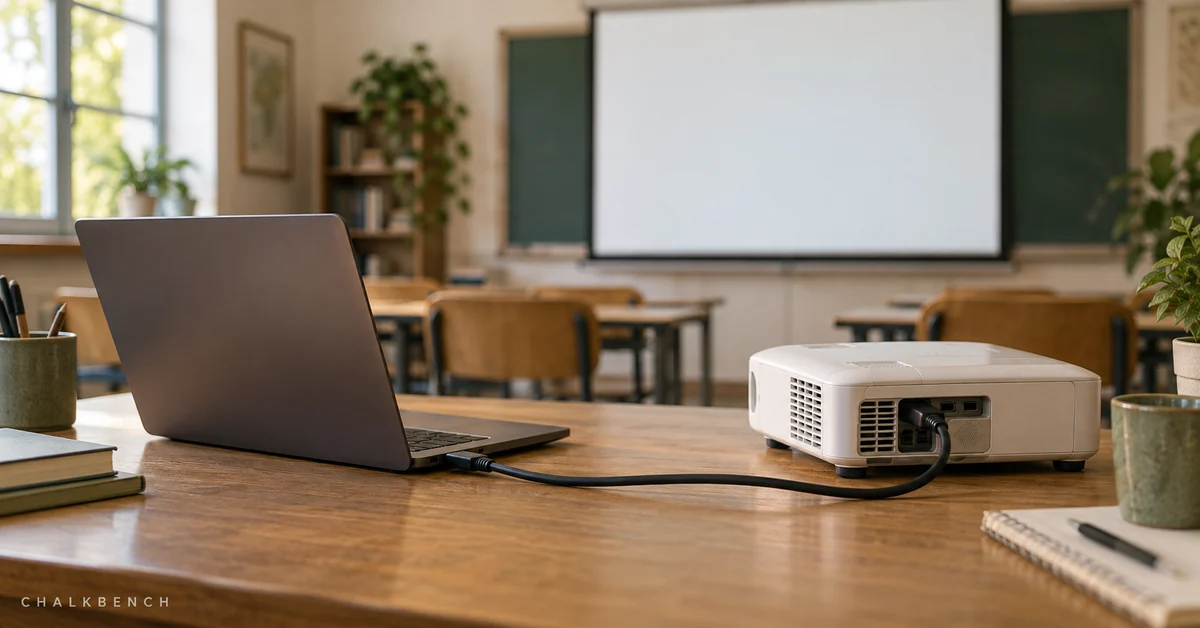
Editorial note: This is documentation-based troubleshooting, not a hands-on product test. School policies and device configurations may vary. Images are AI-generated conceptual illustrations by ChalkBench, not application screenshots or evidence of testing.