To make a PDF smaller for classroom sharing, save a separate compressed copy, then compare it with the original before attaching it to an assignment. Use an approved desktop tool when the file contains school information. Keep the smallest version that still preserves readable text, diagram labels, answer spaces, and any features students need.
Compression can help with a large download. It does not fix an incorrect account, a restricted link, or missing access permission. This guide describes documented Adobe Acrobat and Mac Preview workflows, followed by a classroom quality check. We have not measured compression results or completed a native application test for this article.
Before you make a PDF smaller: confirm the problem
Read the message shown by your learning platform. A message about access, ownership, or a missing file needs a different response from a message explicitly rejecting a file’s size. If a file uploads but takes a long time to download, compare it with another permitted file on the same connection before assuming compression is the only solution.
There is no universal target size recommended by this guide. Google Classroom, another learning platform, a school account, and an individual assignment can involve different constraints. Follow the actual requirement shown by the destination or supplied by your school. We have not verified a Classroom-specific upload limit and do not prescribe one.
Check whether you are sharing more material than students need. A whole scanned resource book is a different delivery problem from a short worksheet. Prepare the intended student resource first, preserving source attribution and any required permission to distribute it. Keep the master separately.
Keep a baseline copy
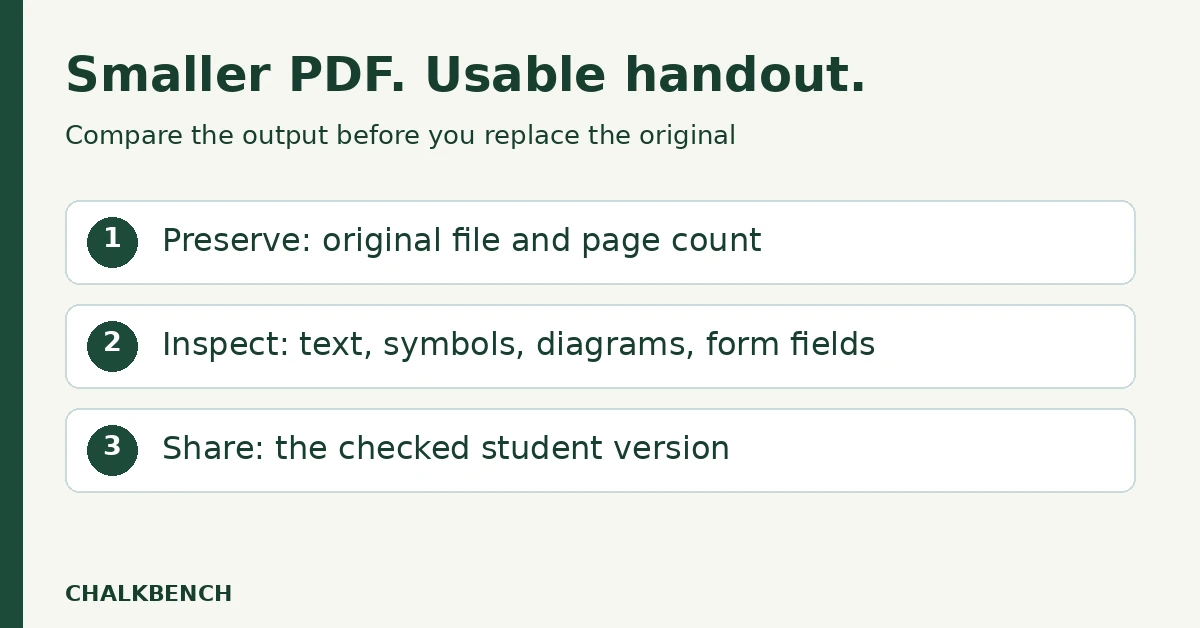
Record the source filename, page count, and file size before making changes. Note a few difficult pages: a detailed chart, a faint scan, a map legend, or small mathematical symbols. These are better comparison points than a plain title page.
Name the new file clearly, for example Habitats-student-compressed.pdf. Leave Habitats-student-original.pdf available until the replacement has been checked. If the compressed copy is poor, return to the original instead of repeatedly compressing an already degraded version.
Reduce PDF size in Acrobat on desktop
Check that your installed Acrobat account includes the required tool. The presence of a PDF viewer does not establish that compression features are available under your license.
- Open the working PDF in Acrobat.
- On Windows, choose Menu → Save as Other → Reduced size PDF. On macOS, Adobe documents File → Save as Other → Reduced size PDF.
- Review the compatibility option for the PDF readers your students use. Use your school’s supported setting when one is specified.
- Confirm the dialog, then save under a new filename.
- Open the saved output and compare it with your baseline.
These steps follow Adobe’s Reduce PDF file size instructions. Labels can differ between versions. If the command is unavailable, use your approved alternative or ask school IT about the installed license.
Reduce PDF size in Preview on a Mac
- Open the PDF in Preview.
- Choose File → Export.
- In Quartz Filter, choose Reduce File Size.
- Use a new output name, then save.
- Inspect the exported copy before replacing any attachment.
Apple’s Preview compression guide warns that output quality and size vary. If the result makes text or diagrams difficult to read, reject that output and return to the source. The existence of a smaller file is not enough to make it a usable handout.
Compare quality at the intended reading size
Open the original and compressed files and inspect the same pages. Start at a normal reading size, then zoom in to investigate any unclear detail. If students will print the document, check the intended paper size and print a representative page before producing a class set.
| Element | Check in the smaller file | Reject the output if… |
|---|---|---|
| Scanned instructions | Small text, punctuation, and lightly printed lines | Words become ambiguous or faint text disappears. |
| Math and science notation | Minus signs, fractions, exponents, units, and subscripts | A symbol changes how a question can be interpreted. |
| Diagrams and maps | Labels, line styles, arrows, and legends | Students cannot distinguish features needed for the task. |
| Digital functions | Required links, text selection, and form fields | The activity depends on a function that no longer works. |
| Completeness | Page count, first and last pages, and answer space | Pages are missing, cropped, or no longer usable. |
For example, a geography worksheet may look acceptable overall while the small dashed line in its map legend has become indistinguishable from a solid line. That is a failed classroom output even if the file uploads successfully. This is a hypothetical review example, not a measured result from either tool.
Avoid removing features just to reduce the number
Advanced optimization can change more than images. Adobe’s PDF Optimizer settings documentation explains that flattening form fields makes them unusable, discarding document tags removes accessibility and reflow capabilities, and unembedding fonts can lead to font substitution.
Do not select unfamiliar removal options merely because they promise a smaller file. Preserve the functions your learners need. A visually tidy PDF is not automatically accessible, and a successful upload does not verify its reading order or form behavior.
If compression produces little improvement, stop repeating the same operation. Consider the source: a PDF made largely of text may offer fewer useful size reductions than a collection of large scans. If a PowerPoint export is involved, review the source with our PowerPoint file-size guide, then export and check a fresh PDF.
Share the checked version
After approving the output, attach that exact file to the intended lesson or assignment. Reopen the attachment through your normal account to verify that you selected the correct version. If an older PDF was already distributed, make the replacement clear so students do not work from different copies.
Keep the teacher key separate from the student file. Compression does not check answers or remove teacher notes. If you created the activity with AI, use the content checks in our PDF-to-worksheet guide before approving the smaller copy.
Frequently asked questions
Will compression always make a PDF much smaller?
No reduction is promised here. Results depend on the source and chosen settings. Compare actual output size and quality rather than expecting a fixed percentage saving.
Should I use an online compressor?
Use only a service approved for the material involved. Check whether the file is uploaded and stored, and whether an account or paid plan is required. This article has not evaluated any online service’s privacy claims or limits.
Can compression fix “You need access”?
No. That message concerns access to the resource. Check the intended account and sharing arrangement rather than creating more compressed copies.
Evidence note: Linked Adobe and Apple documentation was checked September 23, 2026. The comparison checklist is original ChalkBench guidance. Native compression, accessibility, download-time, and physical-print tests remain uncompleted; no before-and-after performance figures are claimed.
Featured image: AI-generated conceptual illustration by ChalkBench; not an application screenshot or product test.