To combine PDFs into a classroom handout pack, gather checked student files, arrange them in teaching order, merge them into a new PDF, and verify the finished page sequence. Keep answer keys outside the student pack. Start with copies so that rearranging pages does not alter the only versions of your source materials.
Adobe Acrobat and Mac Preview both document ways to combine PDF pages. This guide explains those desktop routes and adds a pack-planning method for teachers. Official instructions were checked September 23, 2026; native application behavior and physical printing have not been tested for this article.
Build a file list before you combine PDFs
Create a working folder containing only the files needed for this pack. Open each one once. Confirm that it is the student version, the current revision, and the complete resource. A file named “worksheet-final” may still contain a key on its last page.
Record the intended order and page count. Simple numbered filenames can make the order easier to check, but do not assume that the merge tool will follow filename order automatically. Inspect its thumbnails before combining.
| Order | Example source | Pages | Position in final pack |
|---|---|---|---|
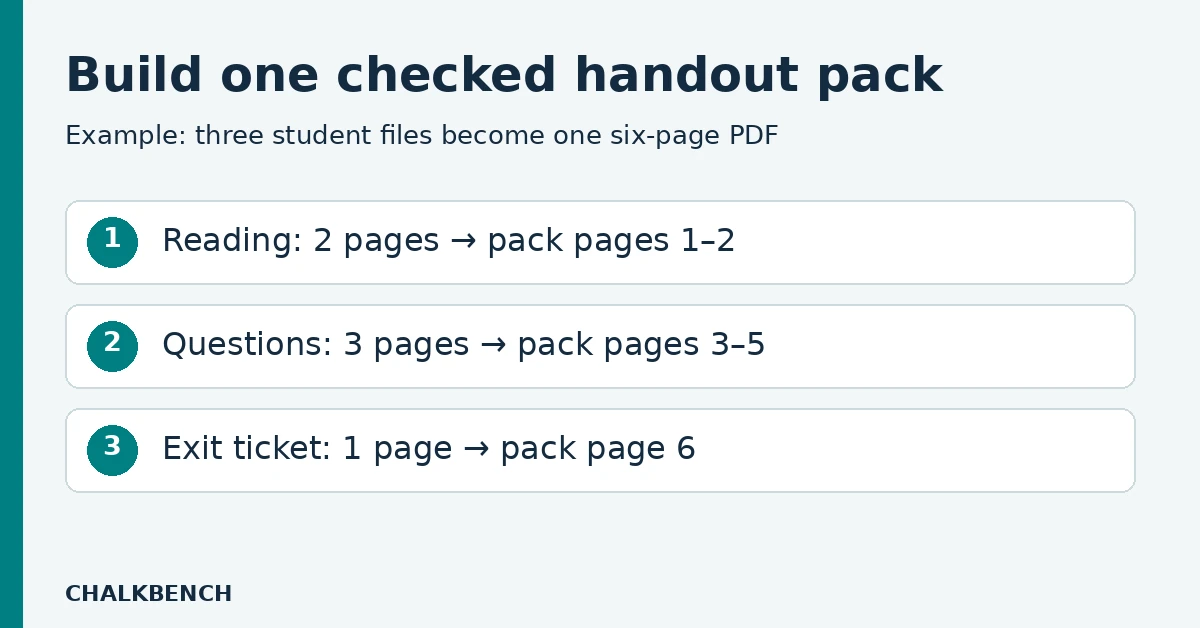
| 1 | 01-reading.pdf | 2 | 1–2 |
| 2 | 02-questions.pdf | 3 | 3–5 |
| 3 | 03-exit-ticket.pdf | 1 | 6 |
This original example should produce a six-page student pack. Store a teacher key separately. If you deliberately add a cover or blank separator later, update the expected total; otherwise an unexpected seventh page should prompt a check.
Also decide how students will use the file. A digital reading pack may need working links. A written task needs room for responses. A double-sided printed pack may need a different section arrangement from a set of single-sided sheets. Merging pages alone does not make those decisions.
Combine PDFs with Acrobat on desktop
Use an account and installation that provide the Combine files tool. These instructions should not be taken as a promise that every free PDF viewer includes the feature.
- Choose Menu → Combine files on Windows, or File → Combine files on macOS.
- Select Add Files and choose your checked PDFs.
- Inspect the list for files you did not intend to include, including documents already open in Acrobat.
- Reorder the file thumbnails. Expand a file when you need to inspect or arrange its individual pages.
- Choose Combine, then save the result under a new pack filename.
Adobe’s Combine files guide describes arranging and removing pages before creating a single PDF. It also notes that open files can be included in the merge workflow. Check the list rather than assuming it contains only the last files you selected.
Combine PDFs with Preview on a Mac
Apple warns that Preview saves changes automatically. Use File → Duplicate to make working copies before combining if you want to retain the originals.
- Open the working copies in Preview.
- In each file, choose View → Thumbnails.
- Drag the pages you need from one document’s sidebar into the destination document’s sidebar, at the intended position.
- To add a whole PDF, Apple’s guide describes dragging its Finder icon into the open document’s sidebar.
- Inspect the order, give the combined copy a clear name, and reopen it.
Follow the official Preview combining guide for your macOS version. Pay attention to the insertion point: placing a reading page in the middle of the questions can be easy to miss if you look only at the total page count.
Check the joins between source documents
The boundaries between files deserve extra attention. In the six-page example, inspect the transition from page 2 to page 3 and from page 5 to page 6. Then inspect the rest of the document. A correct first page does not establish that the entire pack is correct.
Look for repeated title pages, an empty final page from a source, an old instruction sheet, or a key appended to a question file. Remove only what you have identified as unnecessary. A seemingly blank page may have been included intentionally for a printing arrangement; decide whether that arrangement still applies to the combined pack.
Check references such as “see page 2.” A worksheet’s printed numbering may no longer match its position in the merged PDF. Where you control the source, update the reference or identify the section by name. Keep required source attribution with any material you reuse.
Handle mixed page sizes and orientations deliberately
A pack can contain portrait worksheets, a landscape chart, and pages prepared for different paper sizes. The practical question is whether students can use them at the intended size.
Review the print preview against your school’s paper and printer settings. If a page must shrink substantially, check its smallest labels and answer spaces. If it would be cropped at actual size, adjust the source or the print arrangement. Do not assume a “fit” option will preserve the usability of a detailed chart.
For double-sided printing, check which content lands on the reverse of each sheet. In the example pack, the questions begin on page 3, while the exit ticket on page 6 shares a sheet with page 5. If you want students to detach the exit ticket, that may be the wrong arrangement. Print it separately or revise the pack before distributing a class set.
Reopen and verify the file you will share
- Confirm the expected page count and section order.
- Check for duplicated, missing, upside-down, or unexpectedly blank pages.
- Inspect every page for teacher-only answers and private annotations.
- Try the links or form fields students need.
- Check text selection and the accessibility requirements relevant to your learners.
- Print a representative sample if the pack will be photocopied.
A merged PDF that looks correct is not automatically an accessible document. If your students depend on a particular reading order or assistive workflow, include that in the check. Likewise, do not assume that combining two forms preserves their intended behavior; test the resulting file before assigning it.
Keep the checked output separate from the working sources. A filename such as Habitats-student-pack-2026-09-23.pdf is easier to distinguish from the editable originals. When attaching it to an assignment, confirm that you selected the combined student file and not a teacher copy.
Fix common pack problems
The final pack is longer than expected
Compare the output with your file list. Look for duplicate selections, open files added inadvertently, covers, answer pages, and blank source pages. Check content before deleting anything.
The order is wrong
Reorder the actual thumbnails in the working document or merge window. Do not rely only on renaming files after they have already been added to a merge.
The output is too large
First remove accidental duplicates and unnecessary pages. If large slide exports are the source, our PowerPoint file-size guide can help you improve the source presentation. Re-export and inspect it before rebuilding the PDF pack; smaller source files do not guarantee a particular final PDF size.
The pack contains generated questions
Check the questions and answers before packaging them. Combining PDFs does not validate their content. Our PDF-to-worksheet guide covers that earlier editorial step.
Frequently asked questions
Is combining PDFs the same as putting two pages on one sheet?
No. Combining creates a sequence of pages in one file. Printing several pages on one sheet is a separate layout or print setting.
Can I merge a teacher key into the same file?
You can prepare a separate teacher pack, but keep a distinct student output without the key. Verify the student file independently before sharing it.
Should I use a free online merger?
Use your school’s approved workflow and check whether the service uploads or stores the files. We have not verified any online merger’s privacy claims, file limits, or free access in this guide.
Evidence note: Acrobat and Preview instructions are based on the linked official documentation. The pack map, print-planning example, and final checks are original ChalkBench guidance. No native merge, form, accessibility, or physical-print test was completed in this review.
Featured image: AI-generated conceptual illustration by ChalkBench; not an application screenshot or product test.