To split a PDF into student handouts, identify the exact pages each group needs, extract those pages into a new file, and reopen the result before sharing. Keep the source PDF unchanged. For an irregular selection such as a reading passage plus two question pages, use page extraction rather than an automatic “every three pages” split.
This guide describes Adobe Acrobat’s desktop extraction workflow and a Mac Preview alternative. The instructions are based on official documentation checked September 23, 2026. We have not tested these steps in native Acrobat or Preview during this review. The page-selection example below is an original planning example, not a software test result.
Plan before you split a PDF into handouts
Start with a copy of a resource you are permitted to use and distribute. Keep its source details and any required attribution with the selected material. If a school file contains student work, identifiers, or private notes, use your approved document workflow instead of uploading it to an unfamiliar website.
Decide whether you want one new handout, several different handouts, or one file per page. These produce different outputs. One PDF per page is usually inconvenient when a student needs a passage and questions together. Conversely, one combined export is wrong when you intend to prepare distinct group versions.
Use thumbnails and the full-size page view to identify content. The number printed on a worksheet may differ from its position in the PDF because of a cover, contents page, or introductory material. Check both the first and last selected pages rather than assuming that “page 4” means the same thing everywhere.
A page map that keeps the answer key separate
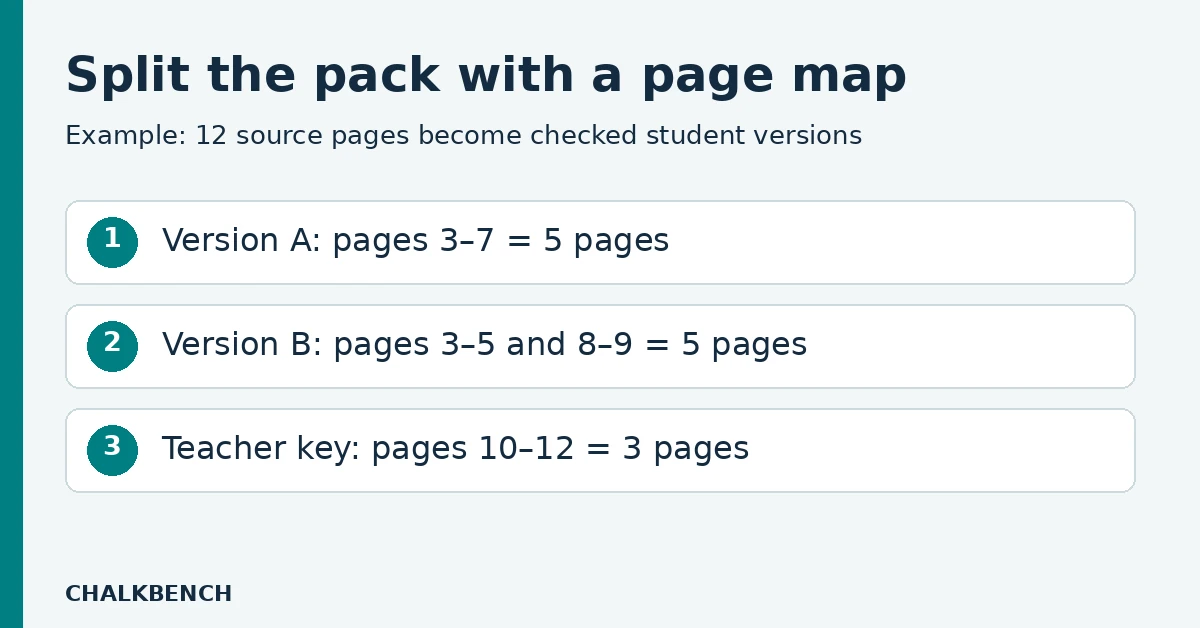
Imagine a twelve-page source file with this structure. The numbers are positions in the PDF, counting its first page as one.
| PDF positions | Content | Planned output |
|---|---|---|
| 1–2 | Cover and teacher instructions | Teacher reference only |
| 3–5 | Reading passage | Both student versions |
| 6–7 | Core questions | Student version A |
| 8–9 | Extension questions | Student version B |
| 10–12 | Answers and marking notes | Separate teacher key |
Version A should contain positions 3–7: five pages. Version B should contain positions 3–5 and 8–9: also five pages. The teacher key should contain positions 10–12: three pages. An automatic five-page split would not create these versions correctly.
Write the intended first page, last page, and total beside each filename. These are quick checks after export. Also check whether the extension questions depend on diagrams or instructions in the core-question pages; a tidy range is not enough if you remove essential context.
Extract selected pages with Acrobat on desktop
Use this route if your installed Acrobat account provides Organize pages and Extract. A PDF viewer alone does not establish access to editing tools; verify the options available under your school’s license.
- Open the PDF and choose All tools → Organize pages.
- Select the required thumbnails or use the page-selection field. Inspect the highlighted pages against your page map.
- Choose Extract pages.
- Leave Delete pages after extracting unchecked to preserve the source.
- Leave Extract pages as separate files unchecked when the selected pages belong in one handout.
- Choose Extract and save the new PDF with a distinct filename.
Adobe’s extraction documentation also notes that comments, form fields, and links can travel with extracted pages, while associated bookmarks and article threads are not extracted. Inspect more than the visible page image. Check document restrictions before editing; request an authorized copy if extraction is restricted.
Use Preview on a Mac for a small selection
Apple’s Preview page-management guide describes creating a new PDF by dragging page thumbnails from the sidebar to the desktop.
- Open your working copy in Preview.
- Choose View → Thumbnails so the individual pages are visible.
- Select the pages intended for the new handout and drag the selected thumbnails to the desktop.
- Rename the new PDF and open it to check selection and order.
For separated ranges, verify every selected thumbnail before dragging. If selecting several groups is awkward, create smaller extracts and combine them in the required order using an approved editor. Avoid deleting unwanted pages from your only source copy simply because deletion seems quicker.
When an automatic split is appropriate
Automatic splitting works best when the source has a predictable structure. For example, a set of independent two-page activities may be suitable for splitting every two pages, provided there is no extra cover and every activity really has the same length.
Adobe’s Split documentation describes splitting by page count, file size, or top-level bookmarks. It also provides output-folder and naming options. Choose the rule that matches the source structure, then inspect the outputs. A file-size threshold is useful for a delivery limit, but it does not understand where a lesson or question ends.
If each activity has a different length, page extraction or correctly structured bookmarks can be more appropriate than a fixed page count. Do not create bookmarks solely to avoid checking which pages belong together.
Check each student file before attaching it
- Count: Does it contain the expected number of pages?
- Boundaries: Are the first and last pages correct?
- Continuity: Are passage, diagrams, questions, and instructions all present?
- Answers: Have you checked every page for teacher-only material, including annotations?
- Function: Do any required links and form fields still work?
- Identity: Does the filename clearly distinguish this version from the source and key?
For the example above, open version B and confirm three reading pages followed by two extension pages. A five-page total alone cannot catch a duplicated reading page or a mistakenly included answer page.
Attach the final student file to the intended assignment, then reopen that attachment if your platform allows it. This last check catches the common mistake of producing the correct file but selecting the source pack when uploading.
Troubleshooting common extraction mistakes
I received a separate PDF for every page
Check the extraction option for separate files. If you need one handout, repeat the extraction into a single document. Preserve the original so you can restart without reconstructing it.
The numbers look right, but the content is wrong
Compare physical PDF positions with the numbers printed on the pages. Covers and introductory pages often create an offset. Use thumbnails and actual headings to identify the range.
The source has changed
Stop and recover the original from your saved copy or your approved version-history process. Then create the handout again with deletion disabled. Do not distribute a partially altered source as if it were complete.
The PDF opens but will not print
First confirm that the file displays correctly. If the problem is the school printer rather than the selected pages, our Chromebook printing guide provides a separate set of checks.
Frequently asked questions
Does splitting a PDF rewrite its content?
The task here selects existing pages. If you need new questions or altered wording, that is a different workflow. See our PDF-to-worksheet guide for generating and checking new practice material.
Can I use an online splitter?
Use one only when it is approved for the material involved and you understand its upload and storage behavior. This article has not verified any online splitter’s privacy claims or free limits.
Is hiding or cropping the answer area enough?
For this workflow, keep answer pages out of the student extract entirely. If answers share a page with student questions, create a proper student source version or use your approved redaction process; do not treat a visual cover-up as verified removal.
Evidence note: Acrobat and Preview steps are documentation-based. No native application, form-preservation, accessibility, or physical-print test was completed for this article. The page map and quality checklist are original ChalkBench examples.
Featured image: AI-generated conceptual illustration by ChalkBench; not an application screenshot or product test.