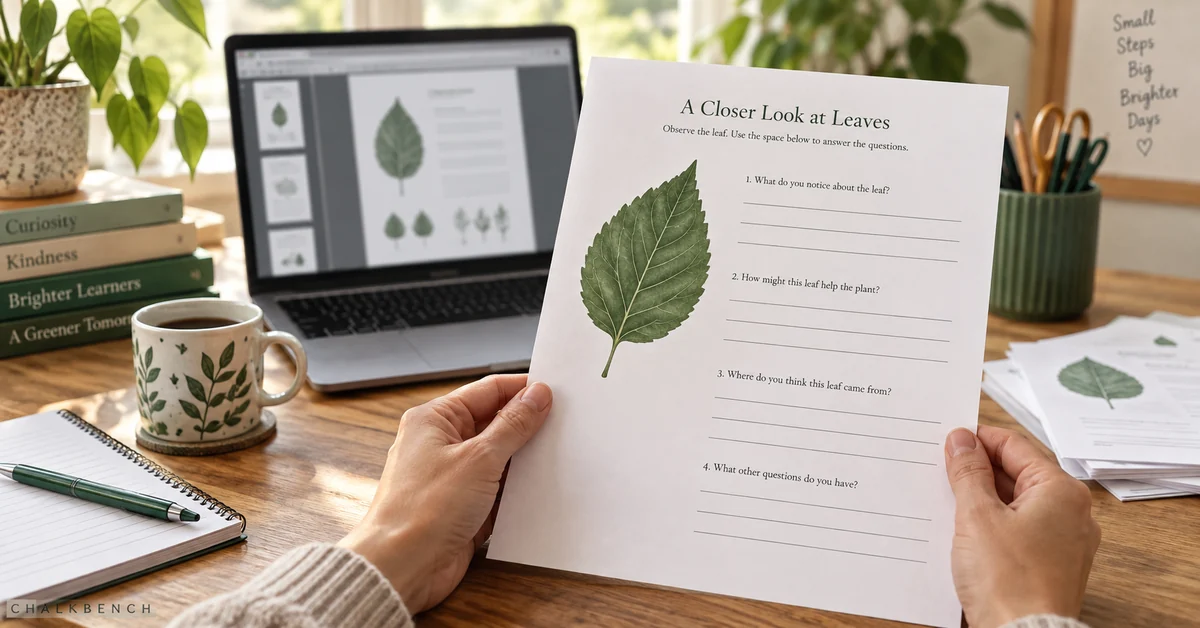
To turn a PDF into a printable worksheet with AI, use the PDF as the source for new practice questions, check the answers yourself, then lay out the student sheet in an editable document. Export only after you have checked the paper size, writing space, and page breaks. A generated worksheet preview is not necessarily a print-ready file.
Start with a short passage and one learning objective. Ask for a separate answer key and enough space for students to respond. This guide concerns classroom practice sheets, not converting a PDF table into an Excel worksheet.
Check the output before choosing a generator
For paper-based practice, the useful output is a document you can correct and print. Check whether the tool provides editable text, a document export, or only a flattened PDF. Also check whether downloading requires an account or a paid plan. Find this out before building a week’s materials.
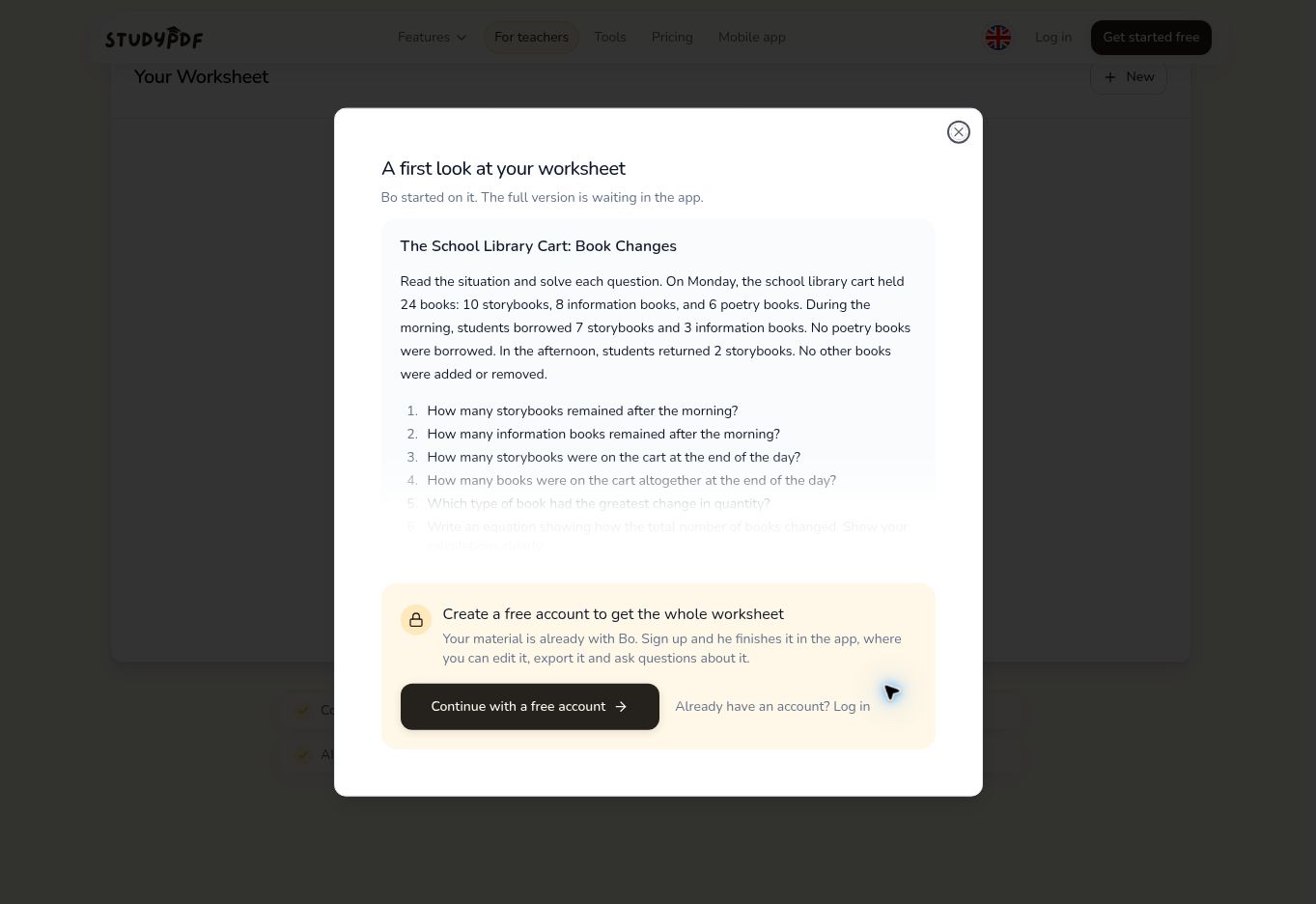
We checked the public StudyPDF worksheet tool using an original one-page PDF on September 22, 2026. It accepted the file and displayed a partial worksheet with relevant questions. The next screen required an account to continue to the full worksheet, editing, and export. We did not complete that account-based stage, verify a downloadable answer key, or test its finished print layout.
The landing page and upload dialog also showed different file limits. For that reason, this guide does not promise a universal limit or an account-free download. Check the live upload dialog and your account’s plan.
1. Give the tool a usable teaching source
Choose a PDF you have permission to use with the service. Keep student names, records, and personal information out of the source. For school material, use an approved tool and account.
Read the selected pages before uploading. If the PDF has multiple columns, tables, or scanned text, check that the extracted passage preserves the reading order and numbers. If a question depends on a diagram, confirm that the diagram will appear on the student sheet; otherwise the question may become impossible to answer.
Separate the source from the worksheet specification. The source supplies the facts. Your specification supplies the objective, reading demands, question types, and space students need.
2. Describe the worksheet you need
Where the tool supports custom instructions, use a request such as this:
Use only the uploaded passage. Create a practice worksheet for students aged [range] working on [objective]. Include two retrieval questions, two questions requiring calculation or explanation, and one extension that can still be answered from the source. Use short instructions. Keep the source passage visible. Put suggested answers and workings in a separate teacher key. Do not invent missing facts. Leave space for written responses. Return editable text so I can prepare the final layout.
This is a reusable specification, not a claim that every generator accepts all these controls. In the StudyPDF session we checked, customization was behind sign-in. If your tool offers only a basic preview, you can still assess whether the questions are useful before choosing to continue.
Be specific about difficulty. “Use subtraction within 100 and explain one calculation” gives a clearer task than “make it suitable for primary school.” For US and UK readers, paper size and curriculum expectations should be set separately; choosing A4 does not make a worksheet curriculum-aligned.
3. Review the questions as a teacher
Check that every item helps students practice the intended skill. A worksheet with several question formats can still ask the same thing repeatedly. Remove tasks that introduce untaught vocabulary or depend on information outside the source.
Our original test passage described a library cart with 10 storybooks, 8 information books, and 6 poetry books. Students borrowed 7 storybooks and 3 information books, then returned 2 storybooks. The preview generated questions about the remaining quantities.
The independently checked end-of-day quantities are 5 storybooks, 5 information books, and 6 poetry books: 16 books in total. The total calculation is 24 − 7 − 3 + 2 = 16. These are fictional teaching-example values, not real school records.
One preview question asked which type of book had the “greatest change in quantity.” We would revise that to “Which type had the largest decrease from the start to the end of the day?” The revision makes the comparison period and direction explicit. That small edit helps prevent disagreement caused by wording rather than understanding.
For each answer, include useful working or acceptable alternatives in the teacher key. Do not treat a key generated by the same AI as an independent check.
4. Build the student sheet in an editable document
Keep the layout simple: a title, a short instruction, the source passage or necessary diagram, and numbered questions. Add a name/date line only if it suits your class. Use actual headings and text rather than placing the whole page inside an image.
Give a one-word answer a short line. Give a calculation room for working. Give an explanation enough room for the expected number of sentences. If the task becomes cramped, use another page or remove a question; shrinking everything until it fits makes the sheet harder to use.
Put the teacher key in a separate document or clearly separated pages. Separate files are usually simpler when distributing student copies. Recheck that answers are not left in headings, comments, highlighted text, or the reverse side of a duplex printout.
Set A4 or Letter in Google Docs
In Google Docs on a computer, open File → Page setup, select Pages, and choose the paper size and margins. Google notes that these page controls are unavailable in pageless format. Use Google’s page setup instructions if the controls are missing.
Choose Letter for a printer loaded with Letter, or A4 for one loaded with A4. If you will offer both, check both layouts independently. Do not assume a file that fits one size will keep the same page breaks on the other.
5. Export, reopen, and check the actual file
Google documents downloading through File → Download and choosing the desired format. Select PDF when available, open the downloaded file, and inspect every page. For direct printing, use File → Print and review the settings. See Google’s printing guidance.
Check the exported document, not just the editor. Look for a question stranded at the bottom of a page, missing characters, cropped diagrams, insufficient writing space, and an answer key accidentally included in the student file.
Before making a class set, print one copy on the intended printer. Check legibility in grayscale, the usable margins, and whether a student can write comfortably in the spaces provided. A screen preview cannot reveal every printing problem.
When the worksheet looks wrong
- The last question spills onto another page: shorten the instruction or move the whole question. Do not remove its answer space just to save paper.
- The PDF contains errors you cannot edit: return to the editable source, correct it, and export again.
- The worksheet asks about missing material: include the required passage or replace the question. Do not expect students to reconstruct the original upload.
- Text shrinks unexpectedly: check page format, paper size, and print scaling. A pageless document can change appearance when printed.
- The tool stops at a preview: check the account/export requirement before spending time refining the output.
Common questions
Can AI preserve the original PDF’s exact design?
Question generation and layout preservation are different tasks. If the original design matters, use an appropriate document-editing workflow and check the result. Do not assume a worksheet generator will retain fonts, spacing, or diagram positions.
Should the worksheet include answers?
Keep answers separate for independent practice or assessment. A self-check activity can include them deliberately, but tell students when and how to use the key.
Do I need a different worksheet for each ability group?
Not automatically. You may be able to retain the same objective and change the amount of scaffolding, vocabulary support, or working space. Check that any revised version still teaches the intended skill.
ChalkBench’s classroom resource checklists can help with final preparation. For choosing an approved workflow, start with the AI tools for educators guide.
Featured image: AI-generated conceptual illustration by ChalkBench; not an application screenshot or product test.