
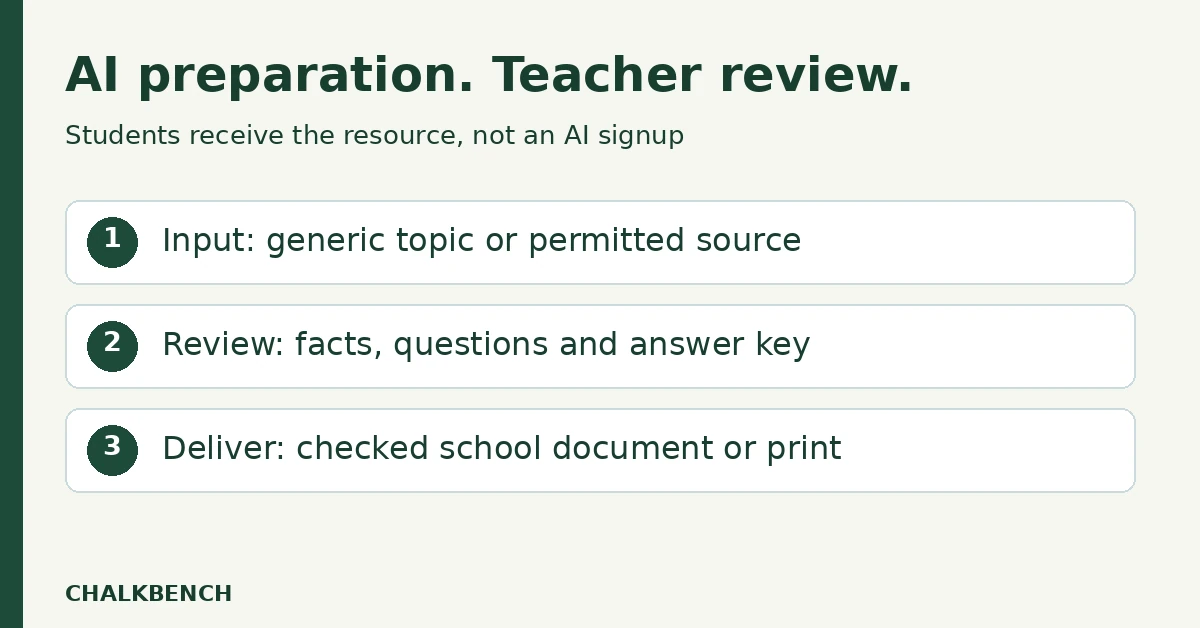
Teachers can use AI without student accounts by keeping generation on the teacher’s side: prepare a lesson resource in an approved educator tool, check it, then distribute a normal document or printed handout. Students work with the reviewed resource rather than signing into the AI service.
That describes a workflow, not a promise of zero data collection. A teacher account, uploaded content, or a connected school service can still send information to a provider. This guide explains the distinction and gives three original planning examples. Vendor features were checked in documentation; we have not run these examples through the products or compared their output quality.
AI without student accounts: define the workflow
For the workflows here, students do not visit the AI platform, join an AI room, or enter prompts. The teacher uses an approved account, reviews the draft, and moves the finished resource into the school’s existing delivery process.
Students may still need their usual school account to open a document in a learning platform. That is different from requiring a new AI account. A printed handout avoids a digital login for that particular activity, but the teacher’s preparation process still needs approval.
| Question | Teacher-only preparation | Separate decision needed |
|---|---|---|
| Who uses the AI service? | The educator prepares the resource. | Students entering a chatbot or activity room. |
| What information is supplied? | A generic topic or permitted source without student details. | Student work, records, names, or linked submissions. |
| How do learners receive it? | A checked handout or ordinary school document. | A link that opens the AI service itself. |
| What does the account permit? | The school’s approved educator use. | A new integration, expanded access, or student-facing mode. |
This role check matters more than a “no login” label on a marketing page. Ask who logs in, where the output opens, and what the provider receives.
Two documented options for educator preparation
Diffit for creating and exporting resources
Diffit’s official FAQ describes a teacher-focused workflow using a topic, pasted text, PDF, URL, or video transcript, with exports including printable PDF and school document formats. An exported resource is a possible handoff for the teacher-only approach described here.
Check the actual export available to your approved account before planning a lesson around it. We have not verified paid-plan entitlements or tested each destination. Do not assume every advertised option is included in every account.
Diffit says it does not collect student data. Its privacy policy nevertheless describes teacher personal data, usage information, and Google authentication. Treat the student-data statement as the vendor’s stated practice, not permission to upload identifiable student material or a guarantee that the service collects nothing.
MagicSchool for teacher planning
MagicSchool describes educator tools for planning, assessments, differentiation, and communication on its teacher platform page. For a teacher-only activity, use an approved educator workflow and move the reviewed content into the normal lesson resource.
The same brand also offers student-facing activity. Its FAQ describes teacher-created Student Rooms. Creating a room or asking learners to interact with the service changes the scope; it is not part of the no-student-AI-account workflow in this article.
MagicSchool’s privacy policy also describes a Google Classroom feedback integration that may access student submission content when requested by the teacher. This illustrates why “only the teacher logs in” does not establish that no student information reaches a provider. Leave integrations outside the workflow unless the school has approved that specific use.
Workflow 1: Draft a short explanation from a generic topic
Choose a narrow learning objective that does not require information about individual learners. Prepare the factual boundaries yourself: the concept, necessary vocabulary, and what the explanation should leave out. Use a topic you can confidently review.
For example, the following is an original ChalkBench prompt template, not a tested product output:
Draft a short explanation of evaporation for a classroom handout. Explain that liquid water changes into water vapor. Include one everyday example and three questions that can be answered from the explanation. Avoid saying that water disappears. Put suggested answers in a separate teacher section. Do not invent citations.
After generation, check the science independently. Confirm that the example demonstrates the concept and that every question has a defensible answer. If the output confuses evaporation with boiling, revise or discard it. Attractive formatting does not compensate for a misconception.
Move the corrected explanation and questions into your approved document editor. Keep the key separate. Students receive the handout; they do not need the original chat, prompt history, or a link to the AI tool.
Workflow 2: Adapt a permitted passage while keeping its meaning
Choose text you are permitted to upload and adapt. Use your own passage or another source whose relevant permissions are clear. A resource being visible online does not by itself establish permission to upload or redistribute it.
Describe the language support needed without naming a student or attaching a learning record. For example:
Adapt this passage using shorter sentences and explain the terms habitat and adaptation in context. Keep the original factual meaning and retain those two scientific terms. Do not add facts that are absent from the passage. List substantive changes separately for teacher review.
This is a hypothetical planning prompt. Compare the revision against the source sentence by sentence where the meaning matters. Check qualifiers such as “some,” “usually,” and “may”; losing them can turn a careful statement into a false absolute.
Do not treat a generated level label as proof that the passage suits every learner. Check conceptual demand, prior knowledge, vocabulary, and the task itself. You may decide that a glossary and teacher explanation serve the lesson better than a full rewrite.
Export or copy the approved version into the chosen handout. Recheck layout after export: a text that reads well in the tool can still need better spacing, headings, or answer areas in the final document.
Workflow 3: Build a question bank for teacher selection
Use AI to propose a small set of questions around content you have already taught. The teacher selects and verifies them before students see them. This keeps the instructional decision with the educator and avoids collecting student responses in an additional service.
Propose six questions about the supplied passage: two retrieval questions, two explanation questions, and two that ask students to use evidence. Make each answer supportable from the passage. Provide a separate draft answer key and identify any question that depends on outside knowledge.
Check for repeated questions, unsupported inferences, and answer keys that merely restate the question. If using multiple-choice questions, verify that there is one intended best answer and that distractors do not introduce misleading facts.
Select only the items needed for the lesson. A longer generated list is not automatically a better activity. Give learners enough context and answer space, then distribute the approved worksheet through the usual school process.
For a fuller source-based question workflow, see turning a PDF into quiz questions with AI. Our PDF-to-worksheet guide covers the separate student and teacher versions.
Keep the input boundary visible
For these starter workflows, use generic topics and permitted curriculum material. Leave names, grades, behavior notes, identifiable student work, and individual support records out of the prompt. Describe a general instructional need instead.
Check the entire uploaded document, including cover pages, comments, headers, and embedded images. Renaming a file does not remove information inside it. If you cannot establish that an upload fits the approved use, use a clean source or write the prompt without that document.
A connection to Drive, Classroom, or another school service deserves its own review because it can change which files or records are available to the tool. Do not approve broad permissions merely to save a copy-and-paste step. Ask the school’s responsible team what account and integration are permitted.
Check the final handoff
- The document contains the corrected material, not an unchecked first draft.
- Answers and teacher notes are separate from student pages.
- Links open the intended school resource rather than a private AI conversation.
- Students are not unexpectedly asked to register with an AI provider.
- The resource works in its intended printed or digital form.
- The teacher retains an editable approved copy for corrections.
Use a school-approved recipient check for digital distribution. A teacher being able to open an exported document does not demonstrate that the intended learners have access.
When this approach is the right fit
Teacher-only preparation is useful when the aim is to produce a reviewed resource, not to have students practice interacting with AI. It can also make a small trial easier to evaluate: review the input, the generated draft, the teacher’s changes, and the final material.
It does not establish that a tool is approved for every US or UK school. Use the institution’s procurement and data-review process for the chosen account, terms, and workflow. This article makes no blanket legal-compliance claim and does not rank providers by privacy or output quality.
Evidence note: Linked Diffit and MagicSchool documentation was checked September 23, 2026. The three prompts and review checklists are original editorial examples. No product generation, account entitlement, export, or student-access test was completed for these examples.
Featured image: AI-generated conceptual illustration by ChalkBench; not an application screenshot or product test.