To export Google Docs to PDF on a computer, open the document and choose File → Download → PDF Document (.pdf). If the document has tabs, check whether you are exporting the current tab or all tabs. Open the downloaded PDF and inspect it before sharing: a successful download does not prove that every page, diagram, and answer space is correct.
For classroom handouts, set up the document in Pages format first. This guide covers the desktop browser workflow and a teacher’s final layout check. Menu instructions follow Google’s documentation checked September 23, 2026; we have not completed an end-to-end export and physical print test in this review.
1. Plan your Google Docs to PDF export
Separate the student material from teacher notes before exporting. If your document contains a passage, questions, a marking guide, and extension work, decide which of those belong in this copy. Do not rely on a filename such as “student version” to make the contents safe to share.
Write down an expected page count and a short list of required sections. For example: two pages of reading, one page of questions, no answer key. This gives you something concrete to compare with the downloaded file.
Keep the editable Google Doc as your source. The PDF is a separate output file; later edits to the Doc do not update a copy you already downloaded or attached to an assignment. Use a recognizable version name, such as Habitats-student-2026-09-23.pdf, and replace older attachments deliberately.
2. Use Pages format for predictable handout layout
In File → Page setup, select Pages and confirm with OK. Check orientation, margins, and the paper size used by your school. US Letter and A4 are different sizes; use the intended printer’s paper rather than assuming a regional default.
Google’s Pages and Pageless guidance explains that Pages supports page breaks, headers, footers, and page numbers. Pageless is designed for continuous scrolling and flexible content width. It is useful for screen reading, but the uninterrupted canvas is not a preview of a fixed printed page.
Check any document that was switched from Pages to Pageless. Google’s printing guidance warns that previously added headers, footers, watermarks, or footnotes can still print while hidden in Pageless view. Wide tables and images may also be adjusted to fit. Switching back to Pages helps expose what needs review.
3. Repair page breaks before downloading
A worksheet is harder to use when a question sits at the bottom of one page and the diagram or answer space appears on the next. Inspect the boundary between every pair of pages, not just the first page.
Where a section must start on a fresh page, use Insert → Break → Page break. For a heading that should begin a page, Google also documents Format → Line & paragraph spacing → Add page break before. See its page-break instructions. Avoid stacking empty paragraphs to push content down: a small edit above them can move the layout again.
Keep diagrams large enough to read at the intended print size. If a wide table becomes cramped, consider restructuring it or using a landscape section rather than reducing every word to a tiny font. Preserve enough writing room for the response you expect. A question asking for an explanation usually needs more space than one asking for a number.
4. Export the correct tab scope
- Open File → Download and choose the PDF file type.
- If a tab-selection dialog appears, review its scope. Google’s current instructions say the default is Current Tab.
- Select All Tabs only when every tab belongs in the output, then choose Export.
- Find the completed download and open it in a PDF viewer.
The official document-tabs guide now describes both current-tab and all-tabs export. Older tutorials can describe earlier behavior, so use the choices visible in your document.
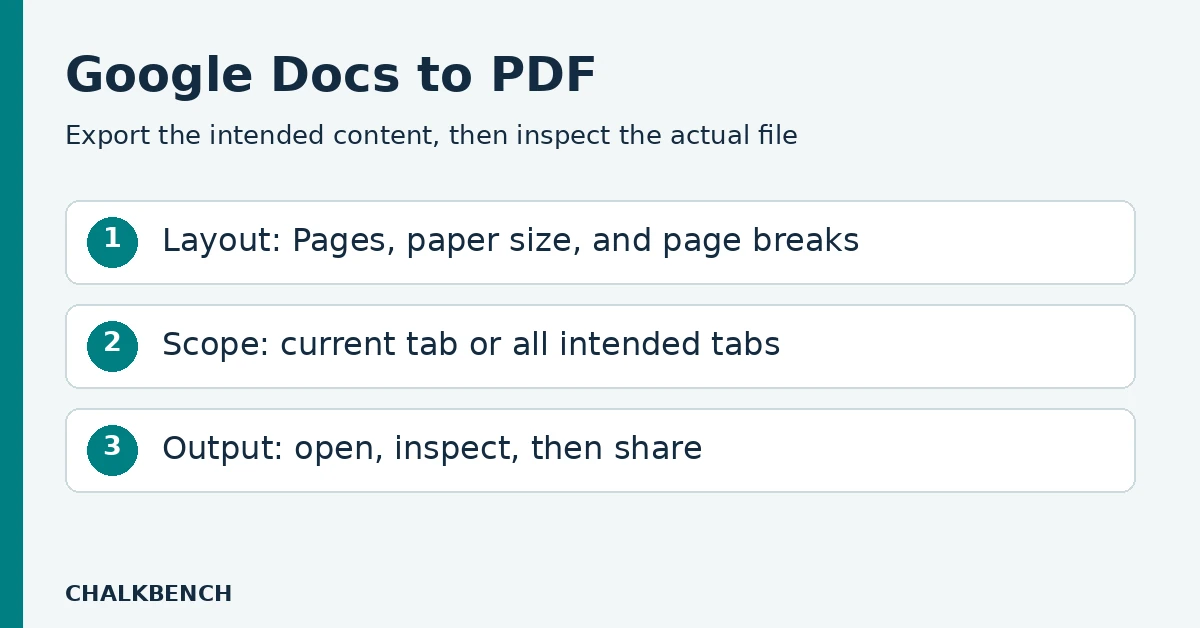
For a file with “Student reading,” “Questions,” and “Teacher key” tabs, neither blindly accepting the default nor selecting all tabs is a reliable student workflow. Check the required scope first. If your export choices cannot produce just the intended sections, prepare a separate student source copy or export the required material separately, then verify the final result.
5. Check the PDF as a reader would
Inspect the actual file you intend to attach, including its filename and modified time. Having several similarly named downloads open is an easy way to approve the wrong version.
| Check | What to inspect |
|---|---|
| Completeness | Expected sections, first and last pages, and all intended document tabs. |
| Page boundaries | No orphaned question stem, cut-off table, detached caption, or accidental blank page. |
| Reading size | Diagram labels, superscripts, fractions, and instructions at normal viewing and print size. |
| Student workspace | Enough room to write; no answer lines hidden by a picture or footer. |
| Teacher-only material | No answer key, marking notes, private comments copied into the body, or unnecessary student identifiers. |
| Digital use | Required links open correctly and selectable text is available where readers need it. |
If students will print the file, preview it using the intended paper size and print one representative page before making a class set. Pay particular attention to lightly colored labels and diagrams. A readable screen image can still be a poor photocopy.
Selectable text and an attractive layout do not by themselves establish accessibility. If students need a specific accessible format, follow your school’s checking process and provide an appropriate alternative. Do not replace all text with screenshots merely to force the visual layout to stay still.
When the download or layout is wrong
The PDF contains only part of the document
Check tab scope first. Compare the exported sections with the source list you made. Also confirm that you opened the newest download rather than an older file with a similar name.
The PDF has unexpected page breaks or tiny tables
Return to Pages format and inspect the source layout. Check paper size, orientation, manually inserted breaks, and the width of tables or images. Repair the Doc, export again, and reopen the new PDF. Avoid making repeated corrective edits to different PDF copies while the source remains wrong.
A large file will not download normally
Google’s download guide offers an alternative in Chrome: choose File → Print, select Save as PDF as the destination, then save. Review the tab scope and print settings again; treat this as a new output that needs its own check.
The PDF is fine, but the Chromebook will not print it
That is a separate problem from document export. Keep the checked PDF and use our Chromebook printing checks to examine the printer and school-device workflow.
Frequently asked questions
Do I need a conversion extension?
Google Docs includes a file-download workflow. Try that built-in route before adding another service to a routine PDF export.
Will editing the Google Doc update an attached PDF?
No. Re-export the changed document and replace the attachment. Reopen the replacement to make sure the intended version is now being shared.
Can I turn the finished PDF into practice questions?
Yes, but creating new questions is a separate task from exporting the layout. Our PDF-to-worksheet guide covers checking generated questions and keeping the answer key separate.
Evidence note: Desktop menu guidance is based on the linked Google Help pages checked September 23, 2026. The classroom checklist is ChalkBench editorial guidance. Mobile-app steps, physical printing, and end-to-end export have not been tested for this article.
Featured image: AI-generated conceptual illustration by ChalkBench; not an application screenshot or product test.